Stock Count Sheet Template
Download a practical stock count sheet for physical inventory counts, cycle counts and warehouse stock checks. Available in editable Excel and printable PDF formats.
Choose Excel or a printable count sheet.
Both formats record physical counts without showing system stock quantities. Prefer a spreadsheet? Choose the Excel file; choose the PDF for handwritten counts.
Excel: editable, 30 count rows
Includes a How to Use tab, count-type and unit-of-measure dropdowns. A recount difference is highlighted when both quantities are entered and do not match. It does not calculate system-versus-physical variance.
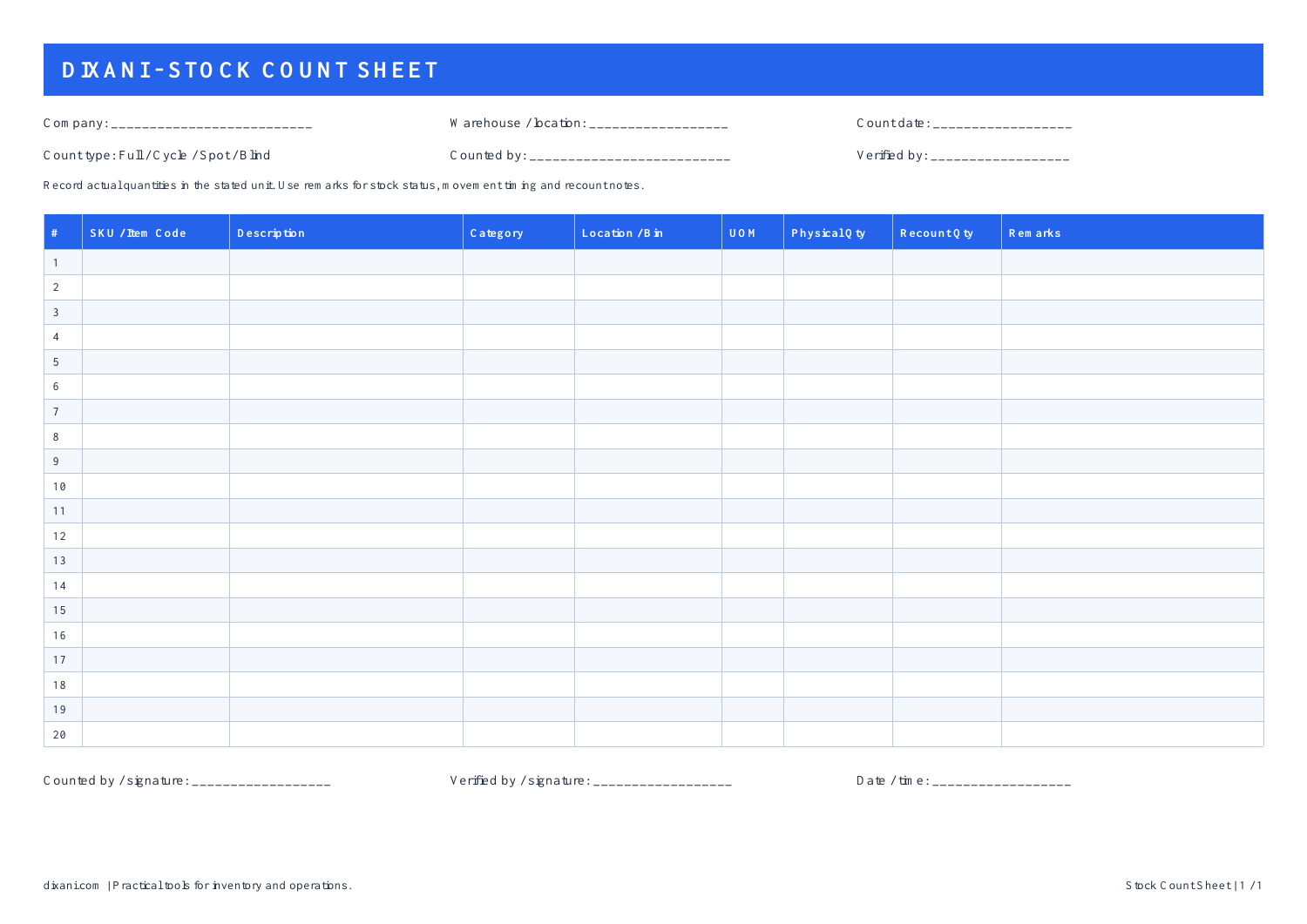
PDF: 20 rows on one A4 page
Print in landscape for handwritten counts. The signature fields stay on the same page. Use it as an inventory count sheet for one-off physical counts, or archive the completed page with the count records. This PDF is a printable form, not an interactive form to type into.
How should I print the Excel version?
On the Stock Count Sheet tab, select A1:I40 and set it as the print area. Choose landscape orientation and fit all columns to one page wide. Leave the height automatic so the rows remain readable, then check Print Preview. Use the PDF when you need a ready-to-print single page.
How do I record zero stock or an independent recount?
Enter 0 only after checking and finding no stock; leave an uncounted item blank. Keep the SKU, unit and location consistent. For an independent recount, use a separate blank sheet so the second counter cannot see the first quantity, then record the verified recount in the master sheet.
Simple physical inventory counting
This stock count sheet is designed for recording physical inventory during warehouse counts, cycle counts, spot checks and general stock verification. Use it as a count sheet template for a single count or a recurring stock check.
SKU Tracking
Record the SKU or item code for each product being counted.
Location Tracking
Record warehouse locations or bin positions to make physical counting easier to organize.
Physical Count
Enter the actual quantity physically counted during the inventory check.
Recount Control
Use the recount field when a second physical verification is required.
Fields included in the template
The template includes the essential information normally required during a physical inventory count.
Count Information
Company or business name, warehouse or location, count date, count type, counted by and verified by.
Item Information
SKU or item code, description, category, warehouse location or bin and unit of measure.
Quantities and Remarks
Physical quantity, recount quantity and remarks for discrepancies or operational observations.
How to use the Stock Count Sheet
A simple workflow can make physical inventory counting more accurate and easier to verify.
Prepare the count
Enter the company, warehouse, count date and people responsible for the inventory count.
List the inventory
Enter each SKU, description, category, storage location and unit of measure.
Count physically
Record the quantity physically found in the warehouse without estimating the stock level.
Recount when needed
Use the recount column when an item needs a second physical verification.
Why the sheet does not show system quantity
The DIXANI Stock Count Sheet is primarily designed as a physical or blind-count document.
Showing the expected system quantity to the person performing the count can influence the result. Recording the physical quantity independently helps create a cleaner count record.
After counting, the physical quantity can be compared with the inventory system to identify shortages, excess stock and other discrepancies.
Found a stock difference?
After completing the physical count, compare the counted quantity with your system inventory using the DIXANI Inventory Variance Report Generator.
Record the physical quantity using this template.
Compare physical quantity with your system quantity.
Follow the inventory variance investigation checklist before proposing a correction.
Document and approve required inventory adjustments.
Download the Stock Count Sheet
Choose the editable Excel workbook or the printable PDF stock count sheet.
Improve the accuracy of your physical stock count
A well-prepared count helps reduce counting errors and makes inventory discrepancies easier to investigate after the physical count is completed.
Organize the Count by Location
Count inventory systematically by warehouse zone, aisle, rack or bin so locations are not accidentally skipped or counted more than once.
Control Stock Movements
Where operationally possible, control or clearly record receipts, issues and transfers taking place during the count to avoid quantity differences caused by ongoing movements.
Use Blind Counts When Appropriate
Hiding the expected system quantity can help counters record what they physically see instead of adjusting the count toward an expected balance.
Recount Unusual Quantities
Use the recount field for unexpected quantities or important discrepancies before making any inventory adjustment in the system.
Operational tip: Complete the physical verification first. After the count, compare the confirmed quantity with the system balance and investigate material differences before approving stock adjustments.
Stock Count Sheet — Frequently Asked Questions
What is a stock count sheet?
A stock count sheet is a document used to record the quantity of inventory physically found during an inventory count.
Can I edit the Excel stock count template?
Yes. The Excel version can be edited and adapted to suit your warehouse, store or business requirements.
Can I use this template for cycle counting?
Yes. The template can be used for full inventory counts, cycle counts, spot checks and blind counts.
Why is there a recount quantity column?
The recount column allows a second physical count to be recorded when the original quantity requires verification.
How do I calculate the stock variance after counting?
Compare the physical quantity with the system quantity. You can use the free DIXANI Inventory Variance Report Generator to calculate shortages, excess quantities and variance values.